Editorial status: Documentation-based implementation guide. No independent end-to-end workflow test or downloadable workflow JSON is claimed.
One of the most common reasons a new n8n webhook appears broken is using the correct path on the wrong URL. The Webhook node exposes separate test and production endpoints. They serve different purposes, and a request that succeeds during editing may fail when a real service sends it later.
Test URL vs production URL
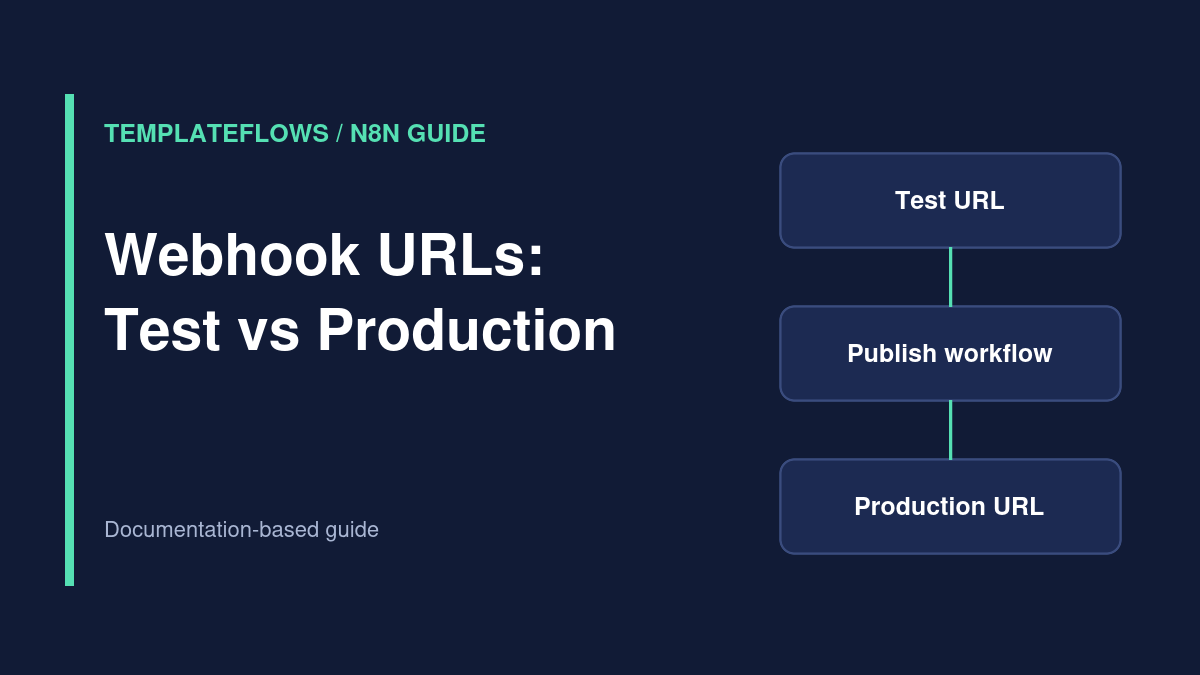
The test endpoint is intended for manual development: n8n listens while you run a test in the editor, then displays the incoming data so you can map it. The production endpoint is designed for requests from your real application when the workflow is published or active. The URLs differ; copying one into a form integration and later switching workflow mode without updating the sender can lead to a 404 or no execution.
Quick diagnosis checklist
- Open the Webhook node and compare the exact URL stored in your sending app.
- Check the HTTP method. A node configured for POST will not behave like a GET endpoint.
- For the test URL, start listening for a test event before sending the request.
- For the production URL, make sure the workflow is published or active according to your n8n version.
- Inspect the Executions view rather than assuming the editor canvas shows every production run.
- Confirm the sender uses the public HTTPS address and not a private Docker hostname.
Example: send a safe test payload
Use a local API client or a form test feature to POST JSON such as {"event":"lead.created","id":"test-123"}. Set Content-Type: application/json. Inspect the Webhook node output; depending on the configuration, request data may appear under a body property rather than at the top level.
Why a production webhook can return 404
The workflow may not be active; the path may have changed; the HTTP method may be wrong; or your reverse proxy may be forwarding requests to the wrong host. On self-hosted installations, check the public webhook base URL and reverse-proxy configuration. Do not publish a private local address in a third-party integration.
Why you receive a timeout
A slow downstream API, an AI step, or a response configuration that waits for the entire workflow can exceed the sender’s timeout. For long-running work, consider acknowledging receipt quickly and processing the job asynchronously. A successful acknowledgment means the event was accepted, not that every downstream step succeeded.
Security considerations
A publicly reachable URL is not automatically authenticated. Configure the Webhook node’s available authentication options or validate provider signatures where supported. Never place API keys in a publicly shared screenshot, sample request, or URL query string. Use test data when diagnosing payload issues.
What to check before going live
Send a valid event, an invalid event, and a repeated event. Confirm the response code, data mapping, error logging, and duplicate behavior. Then replace the test URL in your sender with the production URL and run a final end-to-end test.
Official references
Documentation reviewed: October 2026. Always verify node options in your installed n8n version before using a workflow with production data.
Related TemplateFlows guides
- n8n Webhook to Google Sheets: Build a Lead Capture Workflow
- n8n Error Workflow Setup: Alerts, Retries and Execution Logs
Further reading: n8n Form Trigger Tutorial for a complementary n8n setup walkthrough.