Editorial status: Documentation-based implementation guide. No independent end-to-end workflow test or downloadable workflow JSON is claimed.
When a website form sends a lead, the useful automation is not simply “put the submission in a spreadsheet.” A reliable intake flow checks the payload, rejects incomplete or unwanted data, writes a consistent record, and makes failures visible. This guide explains how to design that flow in n8n using a Webhook trigger and Google Sheets.
What you will build
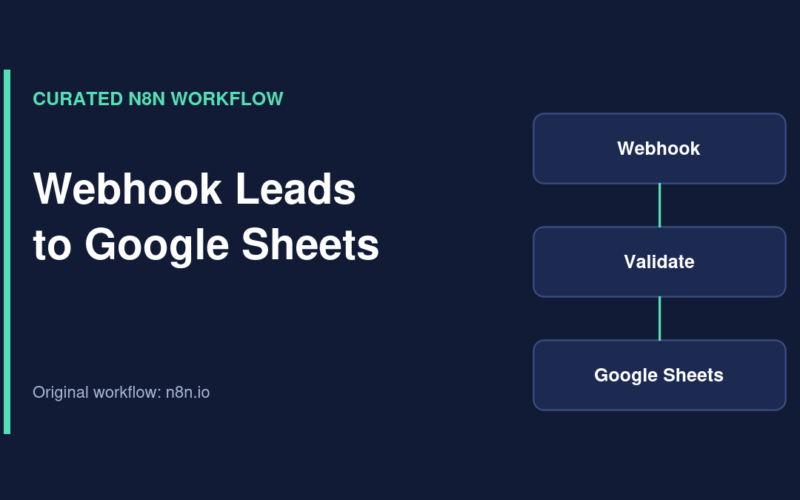
The proposed path is Form submission → n8n Webhook → field validation → duplicate check → Google Sheets Append Row → webhook response. You can add CRM routing or a team notification later. This is a build guide, not a pre-tested downloadable JSON file.
Prerequisites
- An n8n instance reachable over HTTPS from your form provider.
- A Google account authorized to edit the destination spreadsheet.
- A sheet with stable columns such as
submission_id,received_at,name,email,source, andstatus. - A form tool that can send an HTTP POST request or a website integration that can forward submissions.
Step 1: Define the incoming payload
Start with a sample JSON object such as {"submission_id":"demo-1001","name":"Alex Example","email":"alex@example.com","source":"contact-page"}. Do not send real customer information while testing. The exact shape depends on your form plugin; inspect one test execution before writing expressions.
Step 2: Configure the Webhook node
Add a Webhook node, choose the POST method, and set a path that is hard to confuse with other workflows. Use the test URL while listening for a test event. The production URL is for an active or published workflow, depending on your n8n version. Configure an appropriate response mode and do not return private lead data in the response.
Step 3: Normalize and validate fields
Add an Edit Fields (Set) node to extract the name, email, source, and submission ID from the actual webhook body. Then use an If node to require a plausible email and a nonempty identifier. Treat validation as a basic gate, not as proof the address belongs to the submitter. If your form sends a signature, verify it according to the provider’s specification before accepting the payload.
Step 4: Prevent duplicates
Look up the submission_id in your destination before appending. A spreadsheet lookup is convenient for small workloads but is not a transactional lock: concurrent requests can still create duplicates. For high-volume or financially important intake, store a unique submission key in a database with a uniqueness constraint, then synchronize the result to Sheets.
Step 5: Append to Google Sheets
Add Google Sheets, select the spreadsheet and sheet, and choose the operation that appends a row. Map each destination column explicitly from the normalized fields. Prefer an ISO timestamp and a fixed source label. Avoid automatically copying arbitrary form fields, which can expose personal data or break the column structure.
Step 6: Test both success and failure paths
- Send one valid sample submission and verify every mapped cell.
- Send the same submission ID twice and confirm the intended duplicate behavior.
- Send a payload without an email and confirm it does not create a row.
- Test an unavailable spreadsheet or revoked credential and verify that an alert or execution record is available.
- Publish or activate the workflow and repeat a test against the production URL.
Security and operational notes
Public webhooks can attract spam. Use form-provider authentication or signatures when supported, restrict accepted fields, and consider rate limiting at your edge. Keep credentials inside n8n’s credential manager. Decide how long you need lead data and who can access the spreadsheet.
Common problems
Webhook returns 404: confirm whether you used the test or production URL and whether the workflow is active. Empty cells: inspect the webhook’s actual JSON structure and remap the fields. Permission denied: reconnect the Google credential and verify access to the target sheet. Duplicate rows: verify the unique key and consider a transactional store.
Official references
Documentation reviewed: October 2026. Always verify node options in your installed n8n version before using a workflow with production data.
Related TemplateFlows guides
- n8n Webhook Test vs Production URL: Why Your Webhook Is Not Working
- n8n Google Sheets OAuth Setup: Connect Your Account and Fix Permissions
- Contact Form to CRM with n8n: Validate, Deduplicate and Route Leads
Further reading: n8n Form Trigger Tutorial for a complementary n8n setup walkthrough.