Editorial status: Documentation-based implementation guide. No independent end-to-end workflow test or downloadable workflow JSON is claimed.
A contact form that creates a CRM record is useful; a form that creates clean, correctly assigned, consent-aware records is much more valuable. This n8n implementation guide covers the decisions that prevent duplicate contacts, noisy sales pipelines, and silent failures.
Suggested workflow architecture
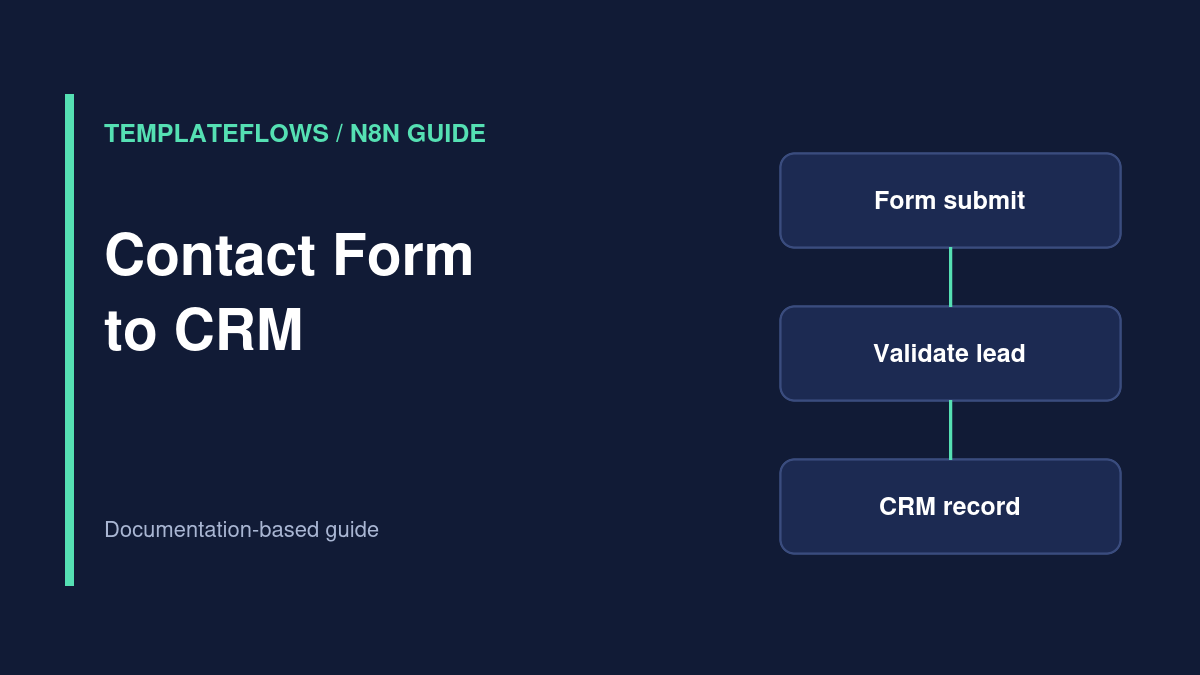
Form webhook → authentication or signature verification → normalize → validate → find existing contact → create or update → route owner → notify team → log result. The CRM action might use a native n8n node, or an HTTP Request node if your provider’s required endpoint is not supported.
Prepare your form and CRM
- Define mandatory fields: email, name, source, consent state, and submission ID.
- Choose a CRM contact identifier and a duplicate policy.
- Decide who owns leads from each region, service, or campaign.
- Obtain a CRM credential with only the permissions required to search and write contacts.
Step 1: Receive and authenticate the submission
Use a Webhook trigger or your form provider’s native trigger. If the provider signs requests, validate its signature using the provider’s documented procedure. Treat arbitrary incoming form data as untrusted. A CAPTCHA on the front end can reduce spam, but it does not replace server-side validation.
Step 2: Normalize fields
Use Edit Fields (Set) to produce a consistent object. Trim surrounding whitespace from names, normalize the email for lookup according to your CRM policy, and map a known campaign/source identifier. Do not infer consent from the presence of an email address.
Step 3: Deduplicate safely
Search the CRM using a supported unique field. If a contact exists, update only the fields you are authorized to overwrite. If not, create a new contact. This search-then-create pattern can race when two events arrive together; prefer a CRM upsert endpoint or provider-supported uniqueness controls where available.
Step 4: Route the lead
Add a Switch or If node to choose a sales owner based on a defined rule such as service type, region, or account tier. Create a default route for unknown values. Record why the owner was chosen so routing disputes are diagnosable later.
Step 5: Notify and log
After the CRM write succeeds, send a concise Slack or email notification with a CRM record link. Avoid posting full form payloads in public channels. Log submission ID, outcome, CRM ID, and timestamp in a controlled location.
Test scenarios
- Valid new contact creates one record.
- Repeat submission updates or skips according to policy.
- Existing customer retains the correct owner.
- Missing email follows the rejection path.
- CRM rate limit or outage creates a visible failure and controlled retry.
- Consent fields are retained accurately and not invented.
Common issues
Duplicate records: use the CRM’s unique key/upsert support. Wrong owner: inspect branch conditions and fallback. Missing source: ensure hidden form fields reach the webhook. 401/403: check credential scopes and access.
Official references
Documentation reviewed: October 2026. Always verify node options in your installed n8n version before using a workflow with production data.
Related TemplateFlows guides
- n8n Lead Qualification and CRM Routing: Build an Auditable Sales Workflow
- n8n Lead Scoring Workflow: Qualify Prospects and Sync Results to Your CRM
Further reading: n8n Form Trigger Tutorial for a complementary n8n setup walkthrough.