Editorial status: Documentation-based implementation guide. No independent end-to-end workflow test or downloadable workflow JSON is claimed.
Automations fail for ordinary reasons: expired credentials, provider outages, malformed data, rate limits, and unexpected responses. The goal of error handling is not to hide those failures. It is to make them visible, recover safely when possible, and avoid repeating irreversible actions.
Two layers of error handling
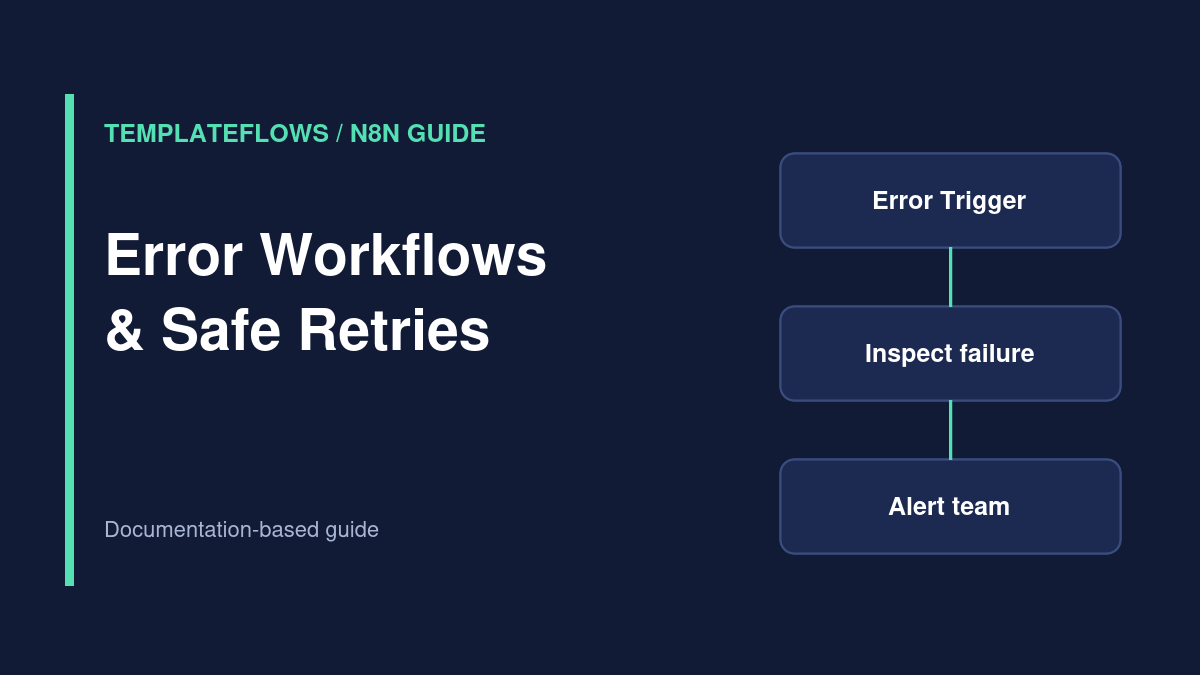
Node-level handling decides what a workflow should do when one operation fails. Workflow-level handling can route failure information to a separate error workflow, commonly starting with an Error Trigger node. Use both when the workflow affects customer data, payments, or operational notifications.
Step 1: Create a dedicated error workflow
Create a new workflow for failures and add an Error Trigger node. Connect it to an Edit Fields node that extracts useful context from the received error object, then send a notification using a suitable email or chat node. Inspect a sample failure payload before assuming exact property names.
Step 2: Connect your production workflow
Open the workflow you want to monitor and select the dedicated error workflow in its error-handling settings. Save the configuration and follow your n8n version’s publication or activation process. Consult the official documentation for which failures and execution modes generate error-workflow events.
Step 3: Make alerts actionable
A useful alert includes the workflow name, execution identifier or link when available, failure time, failing node, and a short sanitized error message. Do not send access tokens, full customer payloads, or raw request headers to a team chat.
Step 4: Add safe retry behavior
Retrying a read-only API request is different from retrying a payment capture or email send. Before enabling automatic retries, determine whether the action is idempotent. Use provider idempotency keys or a durable operation ID when supported. For HTTP 429 responses, respect the provider’s rate-limit and retry guidance rather than hammering the endpoint.
Step 5: Inspect execution history
Open the Executions view and filter for failed runs. Compare the input and output of the failing node and look for the first unexpected value. Be mindful of your instance’s execution-data retention settings and avoid retaining sensitive payloads longer than necessary.
Test the alert path deliberately
- Build a temporary workflow that fails on a controlled, non-sensitive test action.
- Verify the error workflow receives the expected context.
- Check the alert’s link and message without leaking secrets.
- Repeat with a transient failure and a permanent validation error.
- Confirm retry behavior does not duplicate records or messages.
Common problems
No alert: confirm the correct error workflow is selected and check the execution mode. Too many alerts: group repeated incidents and use escalation thresholds. Missing context: inspect the Error Trigger payload and map only fields that exist. Repeated side effects: add idempotency protection before retries.
Official references
Documentation reviewed: October 2026. Always verify node options in your installed n8n version before using a workflow with production data.
Related TemplateFlows guides
- n8n Webhook Test vs Production URL: Why Your Webhook Is Not Working
- n8n Invoice Reminder Workflow: Follow Up Without Sending Duplicate Emails
- Client Onboarding Automation with n8n: A Practical Workflow Plan
Further reading: n8n HTTP Request Node Tutorial for a complementary n8n setup walkthrough.