Editorial status: Documentation-based implementation guide. No independently tested workflow or downloadable JSON is claimed.
Copying information from Gmail into a spreadsheet is a common administrative task. But not every incoming email belongs in a shared sheet, and simply saving the full message body can expose personal or confidential information. This guide outlines a controlled n8n workflow for capturing selected messages as structured records.
Workflow overview
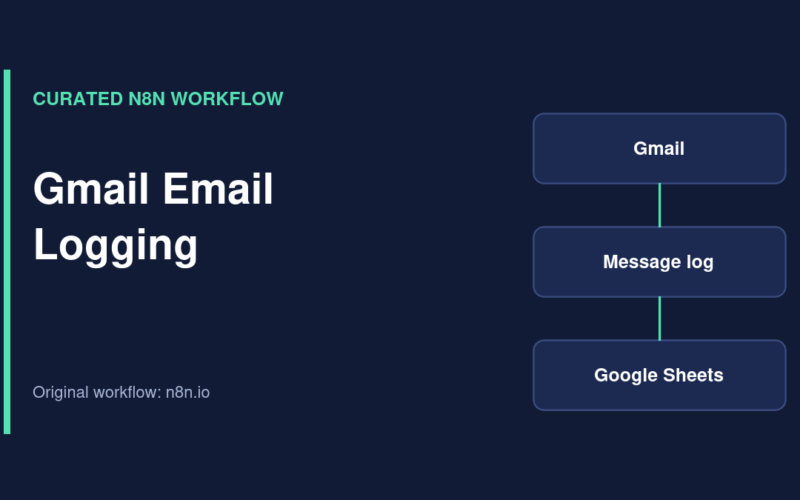
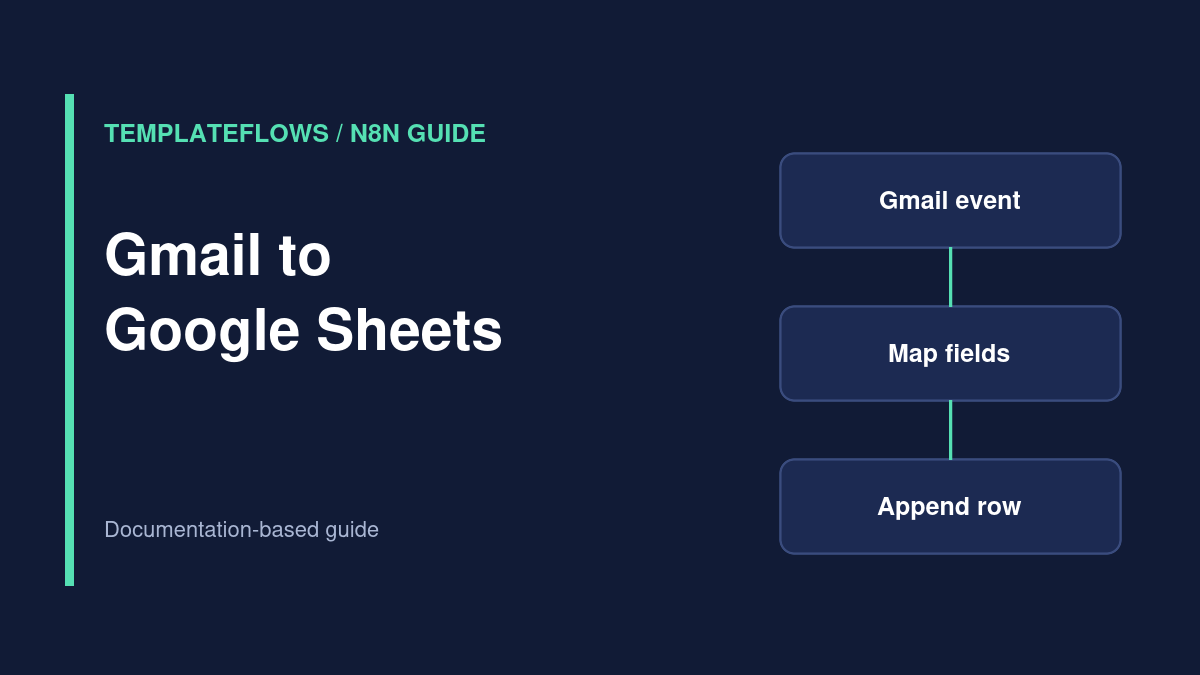
Gmail Trigger → Filter → normalize message fields → deduplicate by message ID → Google Sheets Append Row → optional Gmail label. Start with one mailbox and a dedicated test spreadsheet before expanding to a team inbox.
Choose which emails to capture
Decide on a narrow Gmail label, sender, or search rule. For example, you might capture messages from a specific lead notification address rather than every personal email. Gmail search expressions and the trigger’s available filters depend on the node version; review the node’s options in your installation.
Step 1: Connect Gmail and Google Sheets
Create or select credentials in n8n. Confirm the Gmail account is the mailbox you intend to monitor, and give the Google account edit access to the destination sheet. Prepare headers such as gmail_message_id, received_at, from, subject, category, and processing_status.
Step 2: Add Gmail Trigger
Configure the Gmail Trigger to check for new messages matching your chosen criteria. Use test messages from a controlled sender. If the trigger returns metadata rather than the body you need, add a Gmail action to fetch the message by its ID. Inspect the actual node output rather than assuming every message has the same shape.
Step 3: Extract only necessary data
Use Edit Fields (Set) to create a stable output object. Keep the Gmail message ID as a durable reference. Store the sender, subject, received timestamp, and a narrowly defined category. Avoid copying attachments or entire message bodies into Sheets unless there is a documented business need and an appropriate data-retention policy.
Step 4: Avoid duplicate rows
Before appending, check whether the message ID has already been processed. For a lightweight internal workflow, a sheet lookup may be enough. For larger mailboxes, use a database or durable state store with uniqueness enforcement to avoid race conditions and reprocessing after retries.
Step 5: Append and optionally label
Map fields to the destination headers. After a confirmed successful write, optionally add a Gmail label such as Processed-by-n8n. Do not label the message as processed before the downstream write succeeds, or a temporary Sheets error could cause silent data loss.
Verification checklist
- A matching test email creates exactly one row.
- An unrelated email does not create a row.
- Reprocessing the same message does not duplicate the record.
- A Sheets permission failure leaves a visible failed execution.
- No unneeded message body, attachment, or secret appears in logs or notifications.
Common issues
Trigger sees no email: verify filters, mailbox, and trigger polling behavior. Empty sender field: inspect the output and map the correct nested property. Duplicate rows: key by Gmail message ID. 403 from Sheets: confirm document permissions and the selected credential.
References
Documentation reviewed: October 2026. Verify integration options and permissions for your own software versions.
Related TemplateFlows guides
- n8n Google Sheets OAuth Setup: Connect Your Account and Fix Permissions
- n8n Webhook to Google Sheets: Build a Lead Capture Workflow
Further reading: How to Import and Export n8n Workflow JSON for a complementary n8n setup walkthrough.