Editorial basis: Documentation-based walkthrough; TemplateFlows has not imported or security-tested any third-party workflow linked from this article.
n8n stores workflows as JSON. Importing JSON is the fastest way to inspect an existing automation, but it is not the same as safely deploying it. Imported workflows may contain unfamiliar nodes, environment-specific references or credentials that must be reconfigured. This guide covers import, export and the checks that belong between them.
Quick answer: where is Import from File?
In the n8n editor, open the Workflow menu in the canvas header. Official n8n documentation lists Import from File, Import from URL and Download there. The menu location or label may differ in older n8n versions.
Step 1: Inspect the source before downloading
Use a trusted source, such as a creator’s original listing in the n8n workflow library. Review the stated purpose, required apps, permissions, credentials and any Code or HTTP Request nodes. A workflow advertised as a harmless report should not require broad account permissions or send data to an unrelated endpoint.
Step 2: Import a JSON file
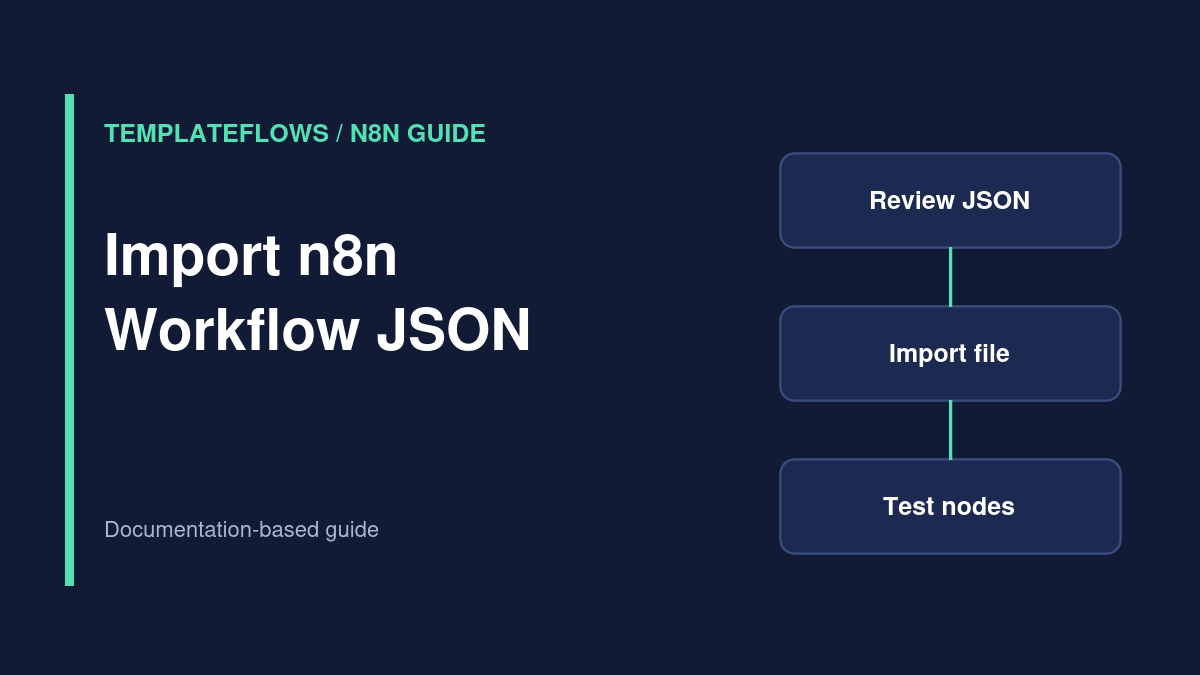
- Create or open a workflow in n8n.
- Open the Workflow menu in the editor canvas header.
- Select Import from File.
- Choose the downloaded
.jsonworkflow file. - Inspect the imported node graph before connecting any live credentials or publishing.
Importing loads a workflow definition; it does not mean every referenced credential, resource ID or API endpoint is valid in your environment.
Step 3: Import from a URL
If the original creator supplies a trustworthy direct JSON URL, choose Import from URL. Verify the destination and content source first. Avoid arbitrary short links and unknown files that could change without notice. For a third-party template, review the nodes after importing just as you would for a local file.
Step 4: Reconnect credentials and replace example values
Open each integration node and choose an authorized credential from your own n8n workspace. Replace sample spreadsheet IDs, webhook paths, Slack channel IDs, project IDs, folder IDs, email recipients and external API endpoints. Check node settings for hidden or hardcoded test values, especially in expressions and HTTP headers.
When the imported workflow performs writes, use a test destination first. Never point a newly imported automation at production payment, email or CRM systems without reviewing its actions.
Step 5: Test before publishing
Execute with fictional or disposable data and inspect the execution trace. Test success, invalid input, missing permissions, API timeouts and duplicate events. Confirm that the workflow does not email real customers or overwrite live records unexpectedly. Only then save and publish it according to your n8n version.
Step 6: Export your own workflow
Open the same Workflow menu and select Download to save the workflow as JSON. n8n also supports copying selected nodes with keyboard shortcuts, and offers CLI/API-based approaches for more advanced migrations.
Security: sanitize JSON before sharing
n8n’s documentation warns that exported workflow JSON can include credential names and IDs; names may reveal sensitive information. HTTP Request nodes can also contain authentication headers introduced through imported curl commands. Before distributing a workflow, inspect and remove secrets, private URLs, tokens, customer information and environment-specific identifiers. Store a clean copy separately from the working original.
Common import problems
- Unknown node type: check the n8n version and whether a required community node is installed and trusted.
- Missing credentials: create or select credentials for your own accounts; imports do not automatically authorize your apps.
- Workflow runs but sends nothing: verify resource IDs, recipients and branch conditions.
- Webhook 404 after import: check the current webhook path, workflow publication and Test versus Production URL.
- Different behavior on another server: compare node versions, environment variables, time zones and external service permissions.
How TemplateFlows handles curated workflows
TemplateFlows links to the original creator’s n8n.io workflow page instead of repackaging third-party JSON as an original asset. Our template directory is a discovery resource, not a claim that every external workflow has been independently tested.
Related guides
Official reference
n8n: Export and import workflows
Documentation reviewed: October 2026. Review imported code and permissions before use.