Editorial status: Documentation-based implementation guide. No independently tested workflow or downloadable JSON is claimed.
New-order notifications can help a fulfillment team respond quickly, but an alert for every order update quickly becomes noise. A useful WooCommerce workflow selects the events that matter, verifies the order status, and sends only the information the team needs.
Suggested workflow
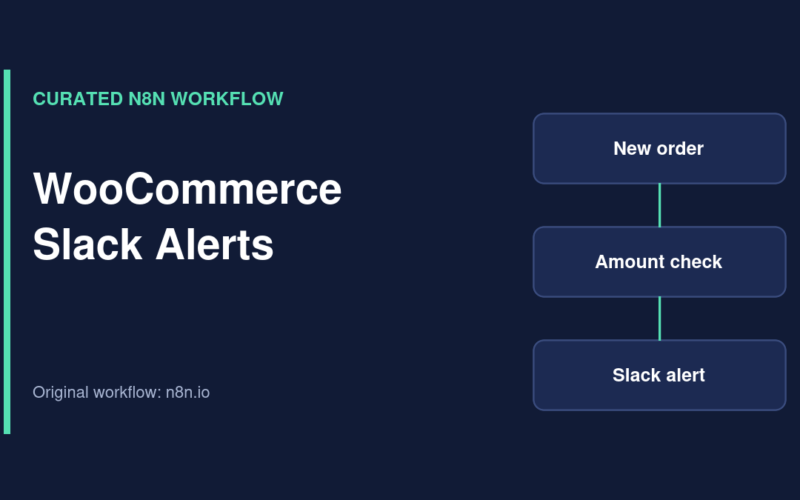
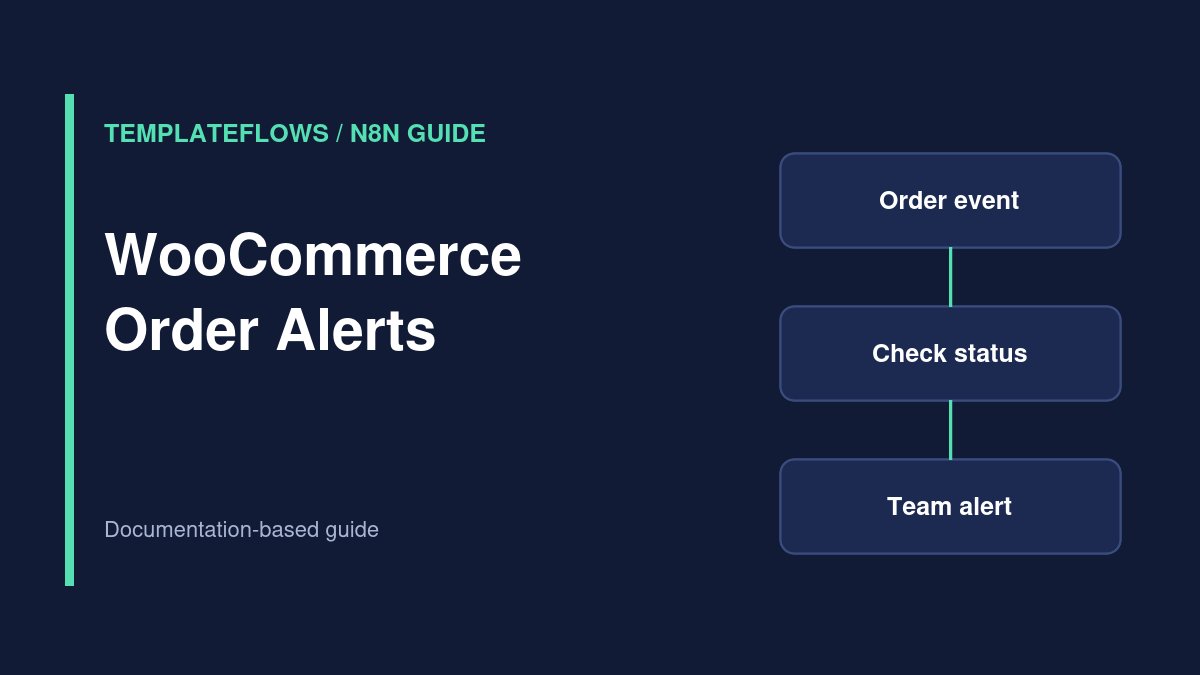
WooCommerce event → verify order details → filter by status → deduplicate event → format message → Slack, email, or team channel. This article describes the implementation pattern, not a verified plug-and-play template.
Before you start
- Administrator or delegated API access to the relevant WooCommerce store.
- A secure HTTPS endpoint or supported WooCommerce Trigger integration.
- A destination channel for operational alerts.
- A clear definition of which order states require action.
Step 1: Choose the event and trigger
Depending on your n8n version and store configuration, use the WooCommerce Trigger or a WooCommerce webhook pointing to an n8n Webhook node. Confirm which events are available and whether your store signs outgoing webhooks. If using a generic webhook, verify its authenticity according to WooCommerce’s documentation.
Step 2: Filter for actionable statuses
Not every new order is paid or ready to ship. Define the business rule first: for example, notify fulfillment only when an order reaches the store’s designated processing status. Use an If or Switch node to separate informational events from action-required events. Avoid making fulfillment decisions based solely on a webhook event name.
Step 3: Prevent duplicate notifications
Order webhooks can be retried or delivered more than once. Track a stable event identifier when available, or use an order ID plus relevant status transition. Store processed keys in a durable system when duplicate alerts would cause operational problems.
Step 4: Format a safe message
A team alert might contain order number, payment/fulfillment status, item count, and a link to the order in WordPress admin. Avoid broadcasting customer phone numbers, addresses, or payment information into broad chat channels. Only authorized team members should receive links to order details.
Step 5: Add a fallback for failed delivery
Inspect the Slack or email node response. If an alert fails, keep the execution visible and configure an error notification to an operational owner. Consider a daily reconciliation report that identifies orders requiring action but missing a successful alert.
Test cases
- Create a test order in a staging store or safe test environment.
- Verify the chosen status triggers one notification.
- Change the order status and confirm the correct branch.
- Replay an event to test duplicate suppression.
- Revoke destination access temporarily and confirm error visibility.
Common mistakes
Assuming all orders are paid, using live customer data for tests, exposing webhook secrets, and sending alerts before deduplication are frequent design errors. Keep your order-status policy documented and review it when payment gateways or fulfillment processes change.
References
Documentation reviewed: October 2026. Verify integration options and permissions for your own software versions.