Editorial note: This is a documentation-based design for n8n Google Search Console reporting. It has not been executed against a connected Search Console property; reported API data can lag and differ from other analytics systems.
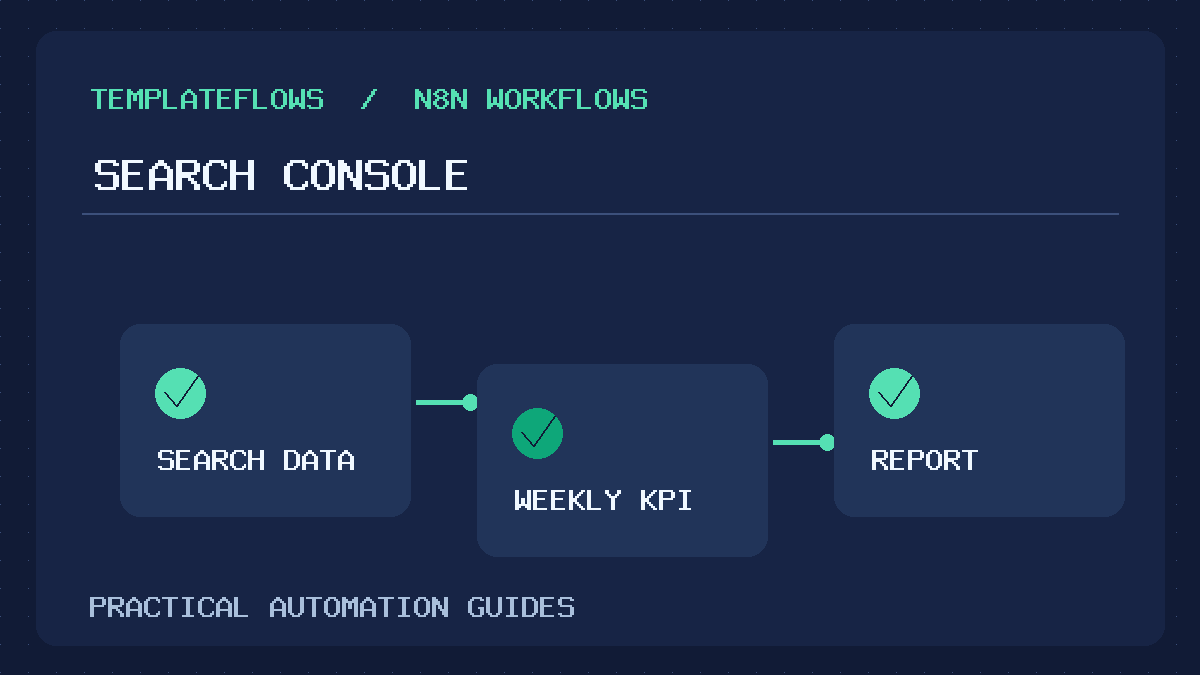
A weekly n8n Google Search Console reporting workflow can collect organic search clicks, impressions, click-through rate and average position, then send a concise digest to website stakeholders. The important parts are property authorization, date windows, API pagination and correct interpretation of what Search Console actually measures.
What Google Search Console reports
Search Console provides Google Search performance information such as clicks, impressions, CTR and average position. These are not the same as website sessions in Google Analytics. Search Console can exclude anonymized queries, and recent days may be incomplete. Do not label a small number of clicks as “total website visitors” or mix position averages without considering impression weighting.
A reliable weekly digest states the property, search type, dates, filters and comparison method next to its metrics. It also warns recipients when the period includes incomplete data.
Choose a verified property and API access
The reporting account must have access to the intended Search Console property. Domain properties and URL-prefix properties use different identifiers, so pass the exact property value expected by the Search Console API. Use the approved Google OAuth credentials or another supported authorization method with a minimal read scope.
Test access with a simple read-only request before building the schedule. A 403 response may indicate an inaccessible property rather than a workflow logic failure. Never embed a refresh token directly in article copy or an exported JSON example.
Plan the weekly date window
Search Console performance data is not guaranteed to be fully settled on the day a query runs. Choose a reporting window that ends on a safely settled date and document the time-zone basis used by the API. For week-over-week comparison, use equal-length periods with equivalent filters.
For example, a seven-day report might compare one Monday-to-Sunday period with the immediately preceding Monday-to-Sunday period, provided both are settled. Record the actual start and end dates inside the report so a recipient can reproduce the query.
Build the n8n reporting workflow
- Start with Schedule Trigger and choose a weekly time after the expected data delay.
- Use Edit Fields or another supported step to compute an explicit current and comparison date range.
- Request Search Analytics data through the Google Search Console API using an authorized HTTP Request node.
- Collect the metrics and any required dimensions, paging through result rows when appropriate.
- Normalize response values and calculate changes without dividing by zero when the prior period has no baseline.
- Format a short report with top pages, top queries, metric changes and explanatory notes.
- Send it to an approved internal destination and log whether delivery succeeded.
Begin with a private test recipient. A weekly digest should not send incomplete query data to clients because one API request failed halfway through the result list.
Use the Search Analytics API correctly
Google’s searchanalytics.query endpoint supports dimensions such as date, query, page, country and device, together with filtering and row limits. Choose only the dimensions necessary for the intended output. Query-level data can be anonymized or truncated and is not always suitable for exact keyword inventory counts.
Pagination and result caps require special attention. The API may return no rows for periods with no data. Treat an empty result as “no rows returned” until you have confirmed the property, search type, dates, permissions and filters.
Worked example: weekly SEO agency digest
Imagine an agency reporting for one site. The digest starts with total Google web search clicks and impressions for the prior complete week, then compares them with the earlier complete week. It highlights the three landing pages with the most clicks and flags any meaningful declines only when there is sufficient baseline data.
Include a note such as “This report uses Google Search Console, not all website traffic.” If a page’s average position changes from 12 to 9, explain that this is an impression-weighted average, not a guarantee that every keyword improved. Do not infer a Google algorithm penalty from one week of noisy data.
Make trend calculations defensible
For a percentage change, use (current - previous) / previous * 100 only when the previous value is nonzero. When previous clicks were zero, show “new activity” or the absolute difference rather than an infinite percentage. CTR comparisons should use consistent units, and position changes should note that a lower numeric position is better.
When comparing top queries, remember that each period can have a different visible query set because of privacy thresholds and ranking changes. Avoid treating missing query rows as proof that no one searched for that phrase.
Report failures and incomplete periods
The workflow should distinguish authentication errors, provider throttling and an empty performance result. A 401 or 403 needs a credential or property check; a temporary API issue may warrant a bounded retry. If data is incomplete, send a clearly labeled partial report or stop and alert an operator rather than sending misleading totals.
See the n8n Error Workflow guide for error alerts and retries. If you need flexible API requests, the HTTP Request tutorial explains credential and response handling.
Privacy and access control
Search queries and page URLs can reveal marketing strategies or private path information. Send reports only to authorized recipients and avoid storing raw query exports longer than needed. Use a dedicated Google account or appropriate shared access for agency reporting; do not gather data from a site that the account is not authorized to inspect.
If reports combine GA4 sessions with Search Console clicks, label each metric’s source and understand that the two systems measure different events.
Common Search Console reporting problems
- No results: inspect property identifier, date range and filters.
- Numbers differ from Analytics: sessions and search clicks are different metrics.
- Missing queries: understand anonymization and row limits.
- Misleading growth percentage: handle zero baselines explicitly.
- Report runs before data settles: move the weekly schedule later.
- Unauthorized property: confirm Search Console access for the connected Google account.
Frequently asked questions
Can n8n email Search Console reports automatically?
Yes, using an authorized API request, scheduled workflow and notification step. Validate API availability and the date ranges before automating delivery.
Why do Search Console clicks not match GA4 sessions?
The systems have different counting rules and scopes. They should be analyzed as complementary metrics, not identical values.
Should a weekly digest use yesterday’s data?
Not automatically. Recent Search Console days may be incomplete. Choose a settled reporting boundary and disclose the selected dates.
Official references
- Google Search Analytics API reference
- n8n Schedule Trigger documentation
- n8n HTTP Request Node Tutorial
Documentation checked October 2026. Query parameters, scopes and data availability must be validated against the actual verified property.