Editorial status: Documentation-based implementation guide. No independently tested workflow or downloadable JSON is claimed.
A retrieval-augmented generation (RAG) chatbot answers questions using documents you provide, rather than relying only on a language model’s general knowledge. With n8n, Google Drive can act as a document source and Supabase can provide vector storage. The challenging part is not the chat interface: it is ingestion, permissions, document freshness, and evaluating answers.
Architecture: two separate workflows
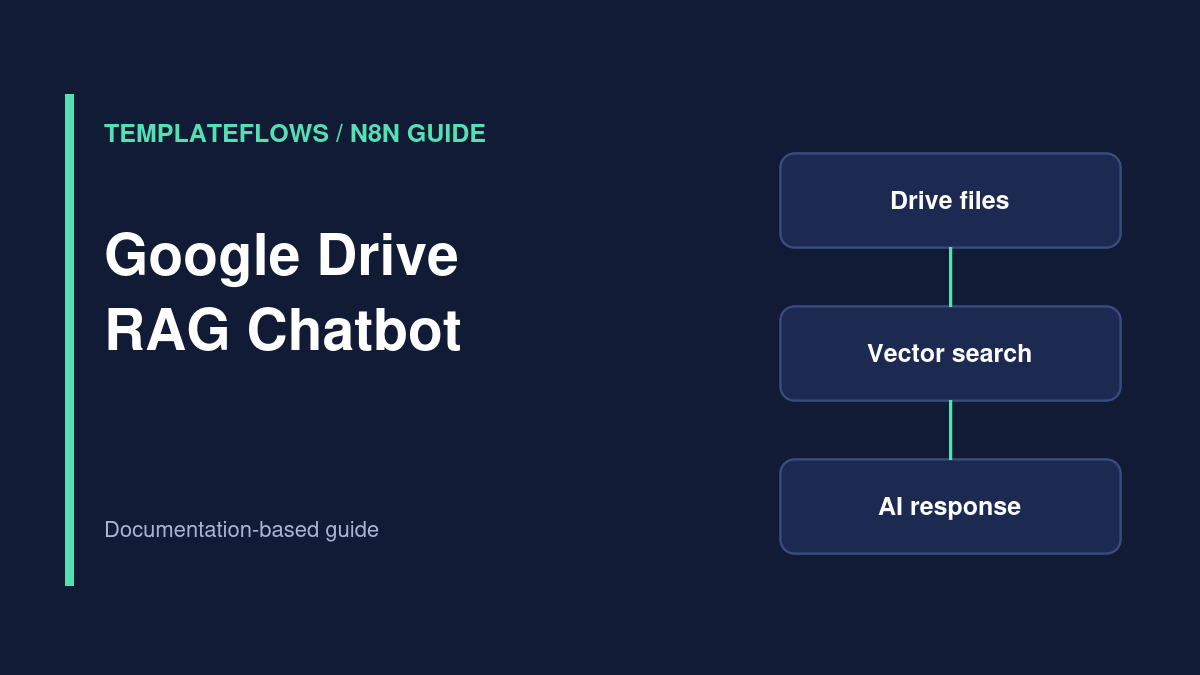
Ingestion: approved Drive files → download → extract text → split into chunks → create embeddings → store vectors and metadata in Supabase. Question answering: question → embedding or retriever → search permitted chunks → model generates answer with citations → return response or abstain.
Prerequisites
- An n8n instance with access to the required AI and integration nodes.
- A Google Drive folder containing documents you are authorized to process.
- A Supabase project with a suitable vector table and permissions.
- An embedding model and a chat model, with their usage costs understood.
- A small set of test questions with expected source documents.
Step 1: Select and govern source documents
Begin with a dedicated Drive folder. Exclude sensitive files, private credentials, and documents with unclear redistribution rights. Record a stable document ID, source link, modified timestamp, and access classification for each file. Decide how deleted or revoked documents will be removed from the vector index.
Step 2: Extract and chunk content
Use the appropriate Drive node to retrieve files, then a supported extraction node or document loader for each format. Chunk text into coherent passages with enough overlap to preserve context. Chunk sizes should be evaluated against actual questions rather than copied from a generic tutorial.
Step 3: Generate embeddings and store them
Choose an embedding model and use a consistent model for indexing and retrieval. Configure Supabase’s vector storage according to the n8n node and Supabase schema requirements. Store metadata such as document ID, title, chunk number, source URL, and permissions so results can be traced and filtered.
Step 4: Build the question-answering path
Connect the user’s question to a retriever that searches the permitted vectors. Pass retrieved passages to the chat model with an instruction to answer from the provided sources and say when the evidence is insufficient. Do not claim the answer is verified merely because a vector search returned a match.
Step 5: Add access control
A single shared vector index can leak documents if retrieval does not enforce user permissions. Filter results by authorization before the model sees them. For multi-tenant or confidential material, design tenant isolation and database access policies rather than relying only on a prompt.
Step 6: Evaluate and refresh
Test factual questions, missing-answer questions, ambiguous documents, and revoked files. Track retrieval relevance, answer accuracy, source attribution, latency, and token cost. Re-index updated documents and delete stale chunks when source files change.
Common failure modes
Hallucinated answer: add an abstention rule and improve retrieval. Old answer: inspect document update handling. Wrong source: verify metadata mapping. Cross-user data leak: enforce authorization in retrieval, not just presentation.
References
Reviewed: October 2026. Verify features, permissions, pricing and node options against the current official documentation.